


How to Link and Use WhatsApp On The PC Without a Phone
Table of Contents
WhatsApp is one of the world’s most popular and largest social messaging apps available on Windows, Android, and iOS devices. It was initially released in February 2009. It is an app you can use to chat with anyone on your contact in any part of the world, both socially and for business purposes.
Another version of WhatsApp, which is known as WhatsApp Web, was launched later; it is the version which enables you to use WhatsApp on the PC without your phone and still be able to carry out those activities which you would have done if you were using it on your phone.
Also Read:
- 4 Steps on How to Create a WhatsApp Call Link
- 4 Steps on How to Clear your WhatsApp call log on Phone
How can I use WhatsApp on my PC without a phone? How is that even possible? This post will answer that question; if you keep reading, you’ll learn how to use WhatsApp on your PC without a phone.
How to Link and Use WhatsApp On PC without a phone
If you frequently use your PC than your phone when in the office, you can link and use WhatsApp on the PC without a phone.
To link your WhatsApp account on the PC and use it without your phone, there are many methods you can follow, and they are easy to do. These methods are:
- How to Link and Use WhatsApp on the PC by Scanning the QR code
- Link and use WhatsApp on the PC using your Phone Number
- How to link and use WhatsApp on the PC through the BlueStack Method
Checkout: How to stop WhatsApp file auto download for Android users (images, audio and videos)
How to Link and Use WhatsApp on the PC by Scanning the QR code
This is one of the easiest methods of linking and using your WhatsApp on the PC. Here are the steps to follow to achieve your aim:
- Open your preferred browser, download and install the WhatsApp web/desktop application on it
- You will see a QR code on the screen, which you can use for authentication
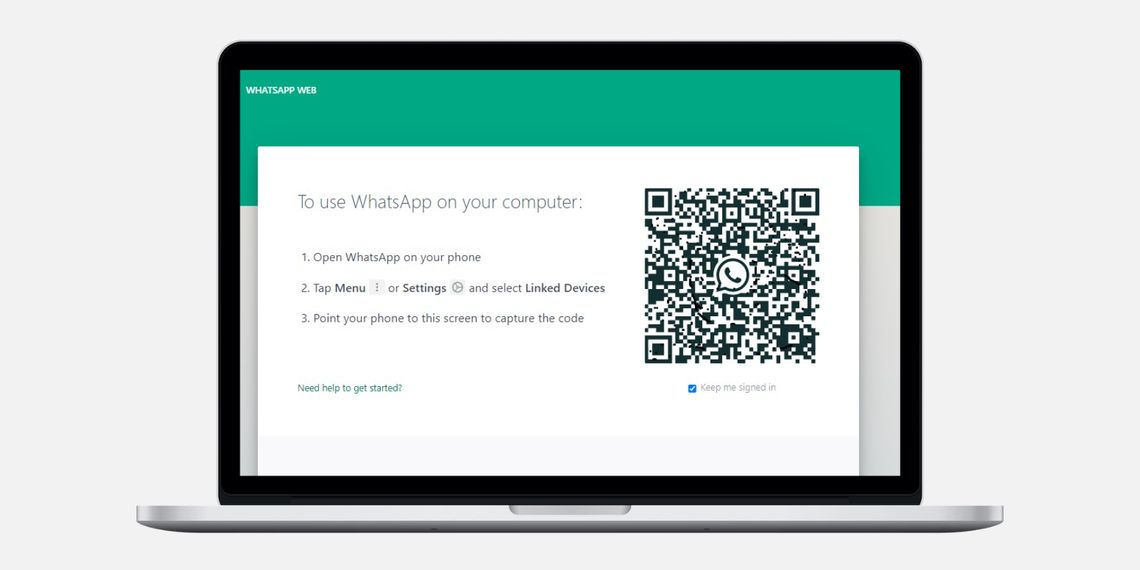

- Open the WhatsApp mobile app on your phone
- Click on the 3 dots in the top right corner of the page
- Click on Setting and then Linked device
- Press on the “Link a device.”
- Point your phone to the screen and Use your Phone camera to capture the QR code.


- Your chats will be uploaded to the PC immediately after you scan them.
Also Check:
- How To Send Pictures As Documents on WhatsApp With Your Android Phone (5 Easy Steps)
- How to Change WhatsApp Number Without Losing Chats [Follow the 8 simple steps]
How to Link and use WhatsApp on the PC Using your Phone Number
This is the easiest method and the simplest, too. You can do it successfully when you follow these steps:
- Download and open WhatsApp on the PC using any of your preferred browsers
- Click on “Link with Phone number.”
- Select your country, type your Whatsapp number, and click “Next”.
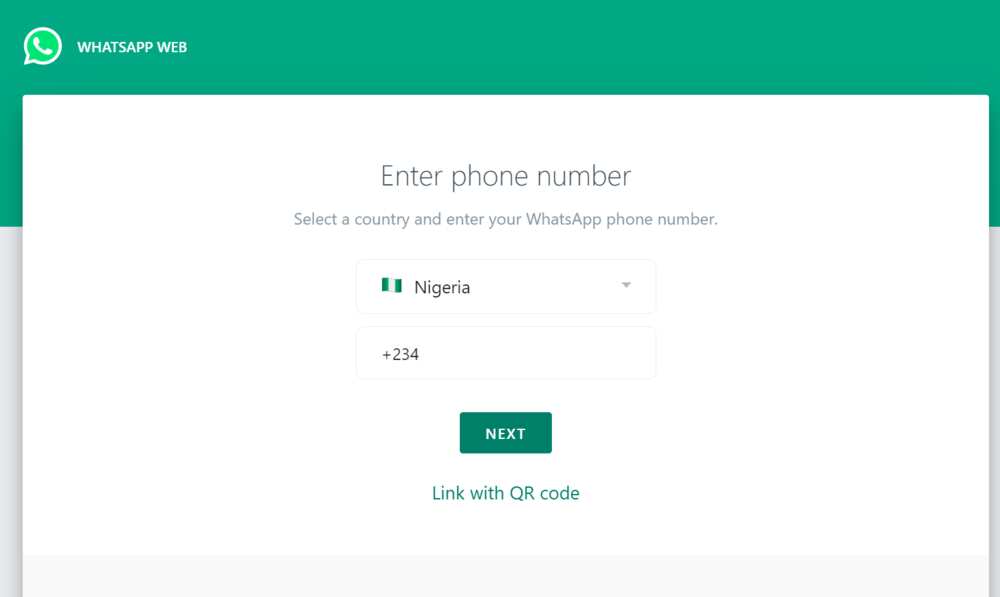

- You will see a new page with a code comprising numbers and alphabets.
- Open the WhatsApp mobile app on your phone
- Click on the 3 dots in the top right corner of the page
- Click on “Setting” and then “Linked device.”
- Press on the “Link a device.”
- Click “Link with phone number instead” below the area for scanning the QR code.
- Enter the code displayed on the screen of your PC to continue.
- After typing the code, your WhatsApp account will appear, and you can now use it on your PC.
How to link and use WhatsApp on the PC through the BlueStack Method\
You can also link and use WhatsApp on the PC through the help of the BlueStack program. Here are the processes to follow:
- Go to www.bluestack.com on your browser
- Click on the Download button to download the program
- Move on to install the app you just downloaded
- Open it after installation and search for WhatsApp using the Search tool in the app
- Install and open WhatsApp on BlueStack
- Proceed to Putin, the phone number which is also used as your WhatsApp number for your account to start using WhatsApp on the PC
You can also read more about:
- WhatsApp Features: 9 Features You Have Not Discovered On WhatsApp
- WhatsApp Update: WhatsApp Has Introduced a New Feature For Editing Sent Messages
- How to Send View Once Photos and Videos on WhatsApp [ Follow the 4 Steps]
- Latest WhatsApp New Feature For Users: How To Link Your WhatsApp Account To Multiple Phones